User-uploaded files are a common security risk. If an application allows users to upload PDFs, images, or any documents into S3, those files should be scanned before they are trusted by downstream services.
Instead of building a custom pipeline with S3 events, Lambda, scanning engines, signature updates, and custom tagging logic, AWS GuardDuty Malware Protection for S3 can scan newly uploaded objects natively.
When tagging is enabled, GuardDuty writes the scan result directly to the S3 object:
GuardDutyMalwareScanStatus = NO_THREATS_FOUNDThis makes the result easy to consume from the application or backend processing layer.
Terraform Setup
The main resource is aws_guardduty_malware_protection_plan:
resource "aws_guardduty_malware_protection_plan" "s3_scanning" {
  count = var.guardduty_enabled ? 1 : 0

  role = aws_iam_role.guardduty_role[0].arn

  protected_resource {
    s3_bucket {
      bucket_name     = module.frontend_uploads_s3.bucket_name
      object_prefixes = []
    }
  }

  actions {
    tagging {
      status = "ENABLED"
    }
  }
}This resource is the actual GuardDuty Malware Protection plan. It connects GuardDuty to the S3 bucket that stores frontend uploads in this example.
The feature is controlled per environment, so the same Terraform code can be used everywhere while enabling malware scanning only where it is required. To achieve that we use Terraform count with variable:
variable "guardduty_enabled" {
  description = "Enable GuardDuty Malware Protection integration for a configured S3 bucket."
  type        = bool
  default     = false
}With that we can for each environment enable or disable within *.tfvars file:
guardduty_enabled = trueThe plan uses an IAM role that GuardDuty assumes when it needs to process uploaded objects. That role gives GuardDuty the permissions required to receive upload events, read objects, scan them, and write the result back to S3. Since we are using count for the IAM role as well this is no longer regular resource rather ‘list’ of resources. This means if GuardDuty is enable, guardduty_enabled = true, Terraform will create one instance of this resource and if it is set to false it doesn’t create resource. Or simply put we tell Terraform: “take first and only GuardDuty IAM role”.
The protected resource is the frontend uploads bucket. In this setup, the plan is not restricted to a specific folder or prefix, which means new objects uploaded anywhere in the bucket are eligible for scanning. So you can create new folders within bucket and upload files there, GuardDuty will still be able to analyze it. If we configure prefixes only uploads to those paths will be processed. One example could be:
object_prefixes = [
  "customers/",
  "uploads/"
]Tagging is enabled, so after the scan completes GuardDuty writes the scan result directly to the S3 object as metadata. For example, a clean file receives a tag showing that no threats were found.
The protected bucket is our frontend uploads bucket:
bucket_name = module.frontend_uploads_s3.bucket_nameIAM Role
GuardDuty needs a role it can assume:
resource "aws_iam_role" "guardduty_role" {
  count = var.guardduty_enabled ? 1 : 0

  name = "${var.env}-drs-guardduty-role"

  assume_role_policy = jsonencode({
    Version = "2012-10-17"
    Statement = [
      {
        Action = "sts:AssumeRole"
        Effect = "Allow"
        Principal = {
          Service = "malware-protection-plan.guardduty.amazonaws.com"
        }
      }
    ]
  })
}That role also needs permissions to read objects, tag objects, configure the required EventBridge managed rule, validate the bucket, and decrypt objects if the bucket uses SSE-KMS.
Required IAM permissions
The malware protection plan only defines which S3 bucket GuardDuty should protect.
GuardDuty still needs permissions to actually perform the scan workflow. The IAM role allows GuardDuty to:
- Detect when a new file is uploaded by using S3 notification and GuardDuty-managed EventBridge rule permissions.
- Read the uploaded file from S3. Without s3:GetObject, GuardDuty cannot access the object content and cannot scan it.
- Write the scan result back to the object by using tagging permissions such as s3:PutObjectTagging. This allows GuardDuty to add a tag like GuardDutyMalwareScanStatus = NO_THREATS_FOUND.
- Decrypt the object if the bucket uses SSE-KMS encryption. Without kms:Decrypt, GuardDuty cannot read encrypted objects and the scan cannot be completed.
A simplified Terraform policy looks like this:
resource "aws_iam_policy" "guardduty_s3_scanning_policy" {
  count = var.guardduty_enabled ? 1 : 0

  name        = "${var.env}-drs-guardduty-s3-scanning-policy"
  description = "Policy to allow GuardDuty to scan S3 bucket uploads"

  policy = jsonencode({
    Version = "2012-10-17"
    Statement = [
      {
        Sid    = "AllowManagedRuleToSendS3EventsToGuardDuty"
        Effect = "Allow"
        Action = [
          "events:PutRule",
          "events:DeleteRule",
          "events:PutTargets",
          "events:RemoveTargets",
          "events:DescribeRule",
          "events:ListTargetsByRule"
        ]
        Resource = [
          "arn:aws:events:${var.aws_region}:${data.aws_caller_identity.current.account_id}:rule/DO-NOT-DELETE-AmazonGuardDutyMalwareProtectionS3*"
        ]
      },
      {
        Sid    = "AllowS3BucketNotificationAccess"
        Effect = "Allow"
        Action = [
          "s3:PutBucketNotification",
          "s3:GetBucketNotification"
        ]
        Resource = [
          module.frontend_uploads_s3.bucket_arn
        ]
      },
      {
        Sid    = "AllowObjectScanAndTagging"
        Effect = "Allow"
        Action = [
          "s3:GetObject",
          "s3:GetObjectVersion",
          "s3:GetObjectTagging",
          "s3:GetObjectVersionTagging",
          "s3:PutObjectTagging",
          "s3:PutObjectVersionTagging"
        ]
        Resource = [
          "${module.frontend_uploads_s3.bucket_arn}/*"
        ]
      },
      {
        Sid    = "AllowBucketValidation"
        Effect = "Allow"
        Action = [
          "s3:ListBucket",
          "s3:GetBucketLocation"
        ]
        Resource = [
          module.frontend_uploads_s3.bucket_arn
        ]
      },
      {
        Sid    = "AllowDecryptForMalwareScan"
        Effect = "Allow"
        Action = [
          "kms:GenerateDataKey",
          "kms:Decrypt"
        ]
        Resource = aws_kms_key.this.arn
      }
    ]
  })
}The most important part is that GuardDuty must be able to read the uploaded object and then write the scan result back as an S3 object tag. Without the tagging permissions, the scan result will not appear on the object. Without the KMS permissions, scans can fail or be skipped for objects encrypted with a customer-managed KMS key.
Find more details on official docs.
Validating
After applying Terraform:
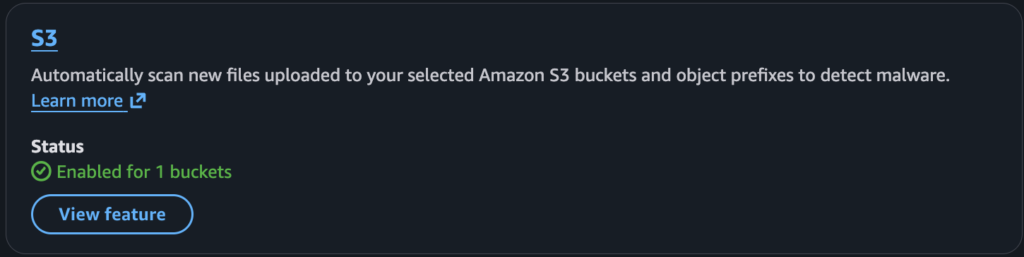
- Open GuardDuty Malware Protection for S3 and confirm that it is enabled for 1 bucket:
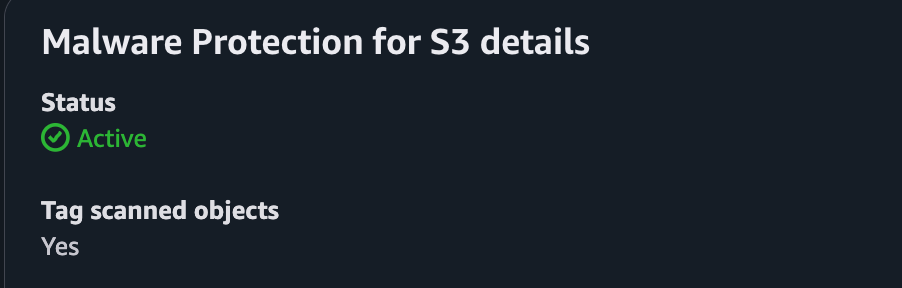
2. Confirm that GuardDuty status is Active.
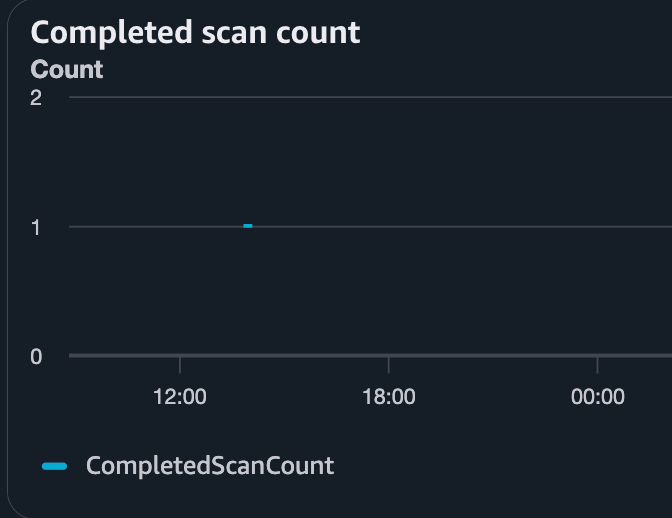
3. Upload test file to S3 or specific path if you configured object prefix, you can confirm with widget within GuardDuty that it scanned file:
If file does not contain malware the expected tag is NO_THREATS_FOUND:

Conclusion
This setup gives us malware scanning for frontend uploads without operating a custom scanning Lambda. The scan lifecycle is managed by AWS, and the result is attached directly to the S3 object as metadata.
It is simple, cloud-native, and works well when the main requirement is to scan and tag uploaded files before they are processed further.